
Recently we decided to have a look at our Azure costs and rationalize what was costing us our hard-earned dollars each month. Having around 800 staff with some of them creating Azure resources for development purposes and forgetting to stop/remove them when they were not needed was a string reason to get the cost under control. If your organization is big with lots of people being able to create Azure resources, it is recommended that you start looking at Azure policies. The purpose of Azure policies is to restrict what the users in the organizations can create. One example would be to limit the VM sizes users can create to the sizes you can afford. You can read about Azure policies here.
Coming back to the topic of keeping an eye on your day to day Azure costs, there is a very handy service in PowerBI you can utilize. The steps are very simple:
1- Log in to PowerBI website or launch PowerBI desktop (downloadable from here)
2- Click on Get Data and then under Services click on Get
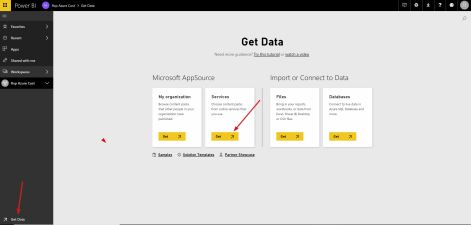
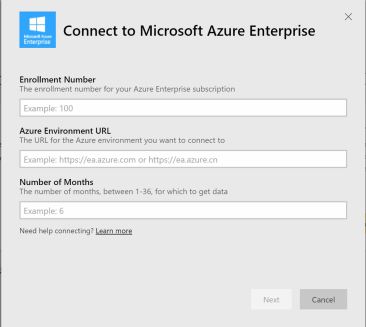
3- From the list of apps that appear, find “Microsoft Enterprise Azure” and click on “Get it now. A new window opens and asks you to identify your environment:
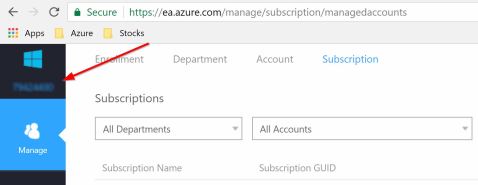
4- To retrieve your Enrollment Number you need to log in to your enterprise portal accessible at https://ea.azure.com. Once you logged in the number is displayed at the top of the screen:
5- For Environment URL provide “https://ea.azure.com” and for the number of months provide a number (I could not personally get more that 6 month’s worth of consumption data).
6- That’s it! You will be taken to a dashboard created by PowerBI giving you a lot of information.
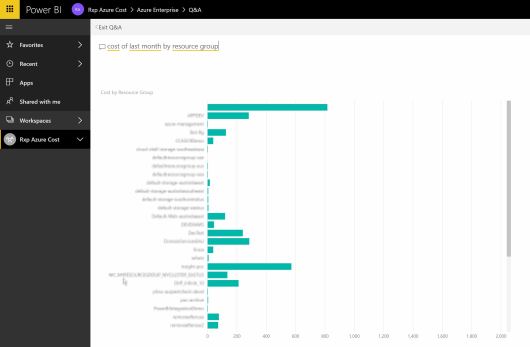
P.S: This is not a PowerBI guide but one feature that I particularly like is the QA feature. Once your usage data is loaded into PowerBI, you can use natural language to query your usage and PowerBI will show a Chart, a number, a table or a string based on the nature of your query. For instance, I was interested to know what resource group was costing us the most so I typed a query like: “cost of last month by resource group” and was represented with a chart like this. Easy! I’ll let you take your imagination and take this further.
P.S #2: Another feature that I particularly liked was the ability to monitor a data field inside PowerBI, and what better metric to monitor than the cost itself! My idea was to set up an alert on yesterday’s cost and see if has spiked to an amount that requires intervention! This was to not let it run until the end of them month and create a bill shock but rather send an email so something can be done. This was achieved by clicking on the cost tile on the dashboard and creating an alert for the data field:
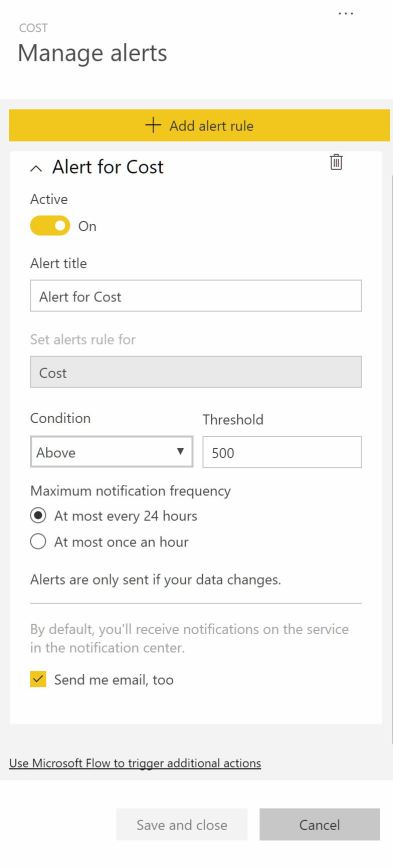
There was a small problem with the data coming from Azure and yesterday’s cost was not synced and the amount was lower than I expected. What I did was changed it to the cost of two day’s ago by editing the tile.
 Vahid Ghattavi